How to Install an APK via ADB
Video Tutorial (English)
📺 Watch the full English tutorial on YouTube:
Click here to watch →
Windows
Step 1 – Download ADB Tools
- Download the free tools from the official Android website:
  https://developer.android.com/studio?hl=en
- Download Android SDK Platform Tools for Windows.
- Extract the ZIP file to a folder (e.g., C:\platform-tools).

Step 2 – Prepare Your Android Device
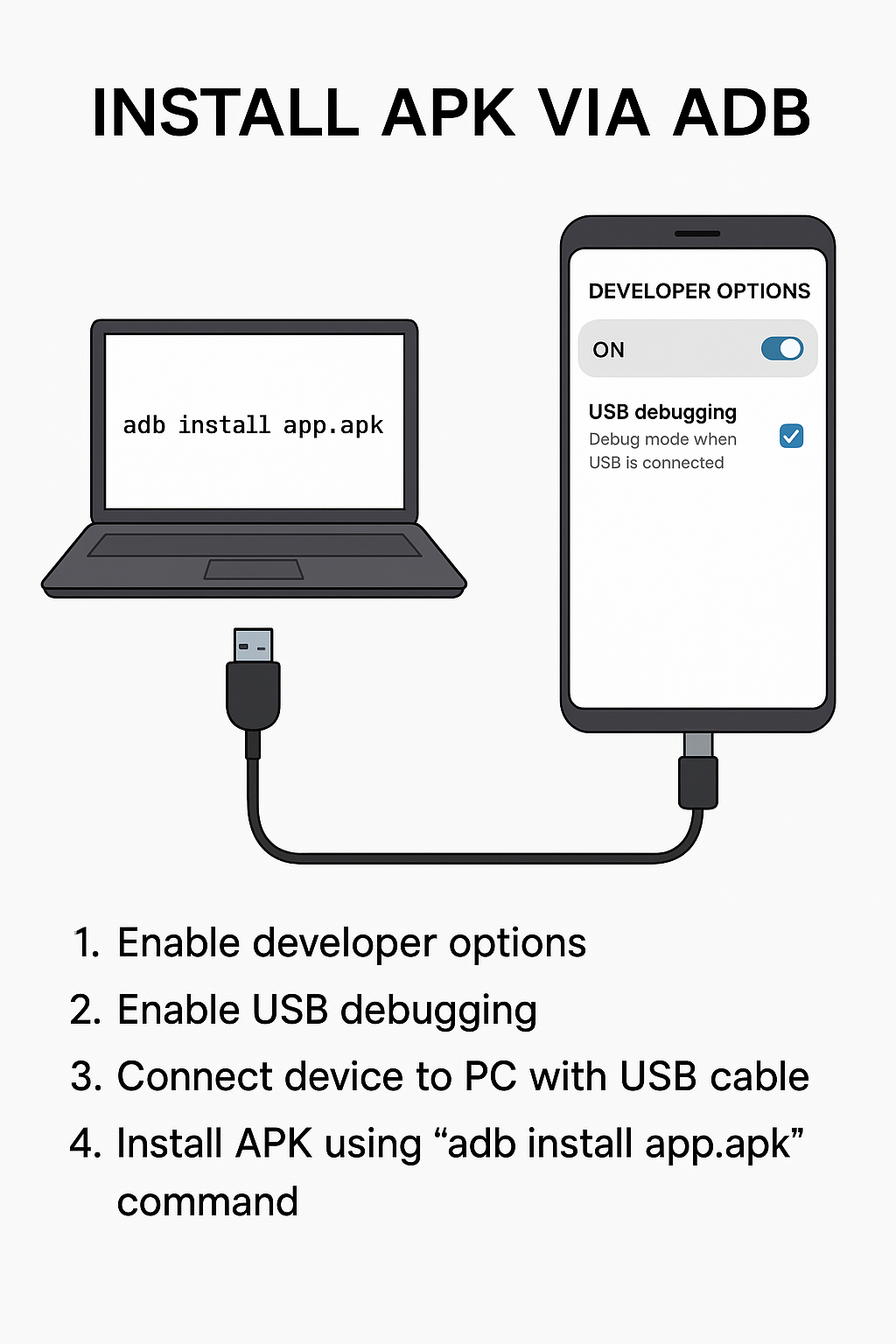
- Open Settings > About Phone.
- Tap Build Number 7 times to unlock Developer Options.
- Go to Settings > Developer Options and enable USB Debugging.
- Connect your device to your PC using a USB cable.

Step 3 – Verify the Connection
- Open Command Prompt in the ADB folder.
- Type: adb devices
- Confirm the authorization message on your phone.
- Your device should appear in the list.

Step 4 – Install the APK
- Place your APK in the ADB folder.
- Run: adb install yourapp.apk
- Replace "yourapp.apk" with the actual file name.
- Wait until you see: Success 🎉

✔ Your app is now installed and ready to use!
Linux & macOS
Step 1 – Download ADB Tools
- Download the free tools from the official Android website:
  https://developer.android.com/studio?hl=en
- Download Android SDK Platform Tools for Linux or macOS.
- Extract the ZIP file to a folder (e.g., ~/platform-tools).

Step 2 – Prepare Your Android Device
- Open Settings > About Phone.
- Tap Build Number 7 times to unlock Developer Options.
- Go to Settings > Developer Options and enable USB Debugging.
- Connect your device to your computer with a USB cable.

Step 3 – Verify the Connection
- Open Terminal and navigate to the ADB folder:
  cd ~/platform-tools
- Run: ./adb devices
- Confirm the authorization message on your phone.
- Your device should appear in the list.

Step 4 – Install the APK
- Place your APK in the ADB folder.
- Run: ./adb install yourapp.apk
- Replace "yourapp.apk" with the actual file name.
- Wait until you see: Success 🎉

✔ Your app is now installed and ready to use!
Cómo Instalar un APK vía ADB
Video Tutorial (Español)
📺 Mira el tutorial completo en español en YouTube:
Haz clic aquí para ver →
Windows
Paso 1 – Descargar ADB Tools
- Descarga las herramientas gratuitas desde el sitio oficial de Android:
  https://developer.android.com/studio?hl=es-419
- Descarga Android SDK Platform Tools para Windows.
- Extrae el ZIP a una carpeta (ej.: C:\platform-tools).

Paso 2 – Preparar tu dispositivo Android
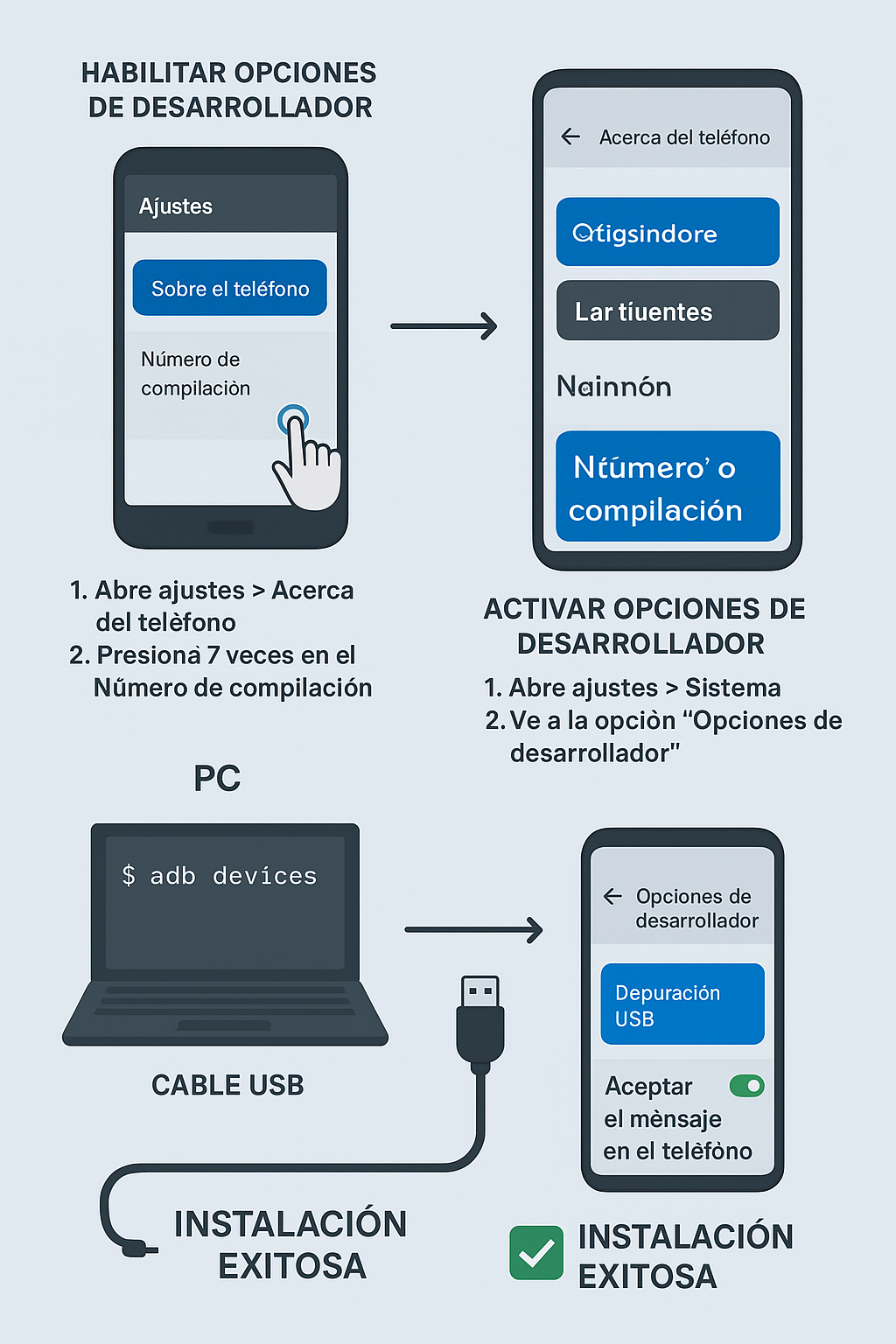
- Abre Ajustes > Acerca del teléfono.
- Toca Número de compilación 7 veces para activar Opciones de desarrollador.
- Ve a Ajustes > Opciones de desarrollador y activa Depuración USB.
- Conecta tu dispositivo a la PC con un cable USB.

Paso 3 – Verificar la conexión
- Abre Símbolo del sistema en la carpeta de ADB.
- Escribe: adb devices
- Confirma el mensaje de autorización en tu teléfono.
- Tu dispositivo debería aparecer en la lista.

Paso 4 – Instalar el APK
- Coloca tu APK en la carpeta de ADB.
- Ejecuta: adb install tuapp.apk
- Sustituye "tuapp.apk" por el nombre real del archivo.
- Espera hasta que aparezca: Success 🎉

✔ ¡Tu app ya está instalada y lista para usar!
Linux & macOS
Paso 1 – Descargar ADB Tools
- Descarga las herramientas gratuitas desde el sitio oficial de Android:
  https://developer.android.com/studio?hl=es-419
- Descarga Android SDK Platform Tools para Linux o macOS.
- Extrae el ZIP a una carpeta (ej.: ~/platform-tools).

Paso 2 – Preparar tu dispositivo Android
- Abre Ajustes > Acerca del teléfono.
- Toca Número de compilación 7 veces para activar Opciones de desarrollador.
- Ve a Ajustes > Opciones de desarrollador y activa Depuración USB.
- Conecta tu dispositivo al ordenador con un cable USB.

Paso 3 – Verificar la conexión
- Abre Terminal y navega a la carpeta de ADB:
  cd ~/platform-tools
- Ejecuta: ./adb devices
- Confirma el mensaje de autorización en tu teléfono.
- Tu dispositivo debería aparecer en la lista.

Paso 4 – Instalar el APK
- Coloca tu APK en la carpeta de ADB.
- Ejecuta: ./adb install tuapp.apk
- Sustituye "tuapp.apk" por el nombre real del archivo.
- Espera hasta que aparezca: Success 🎉

✔ ¡Tu app ya está instalada y lista para usar!